Webcast Event
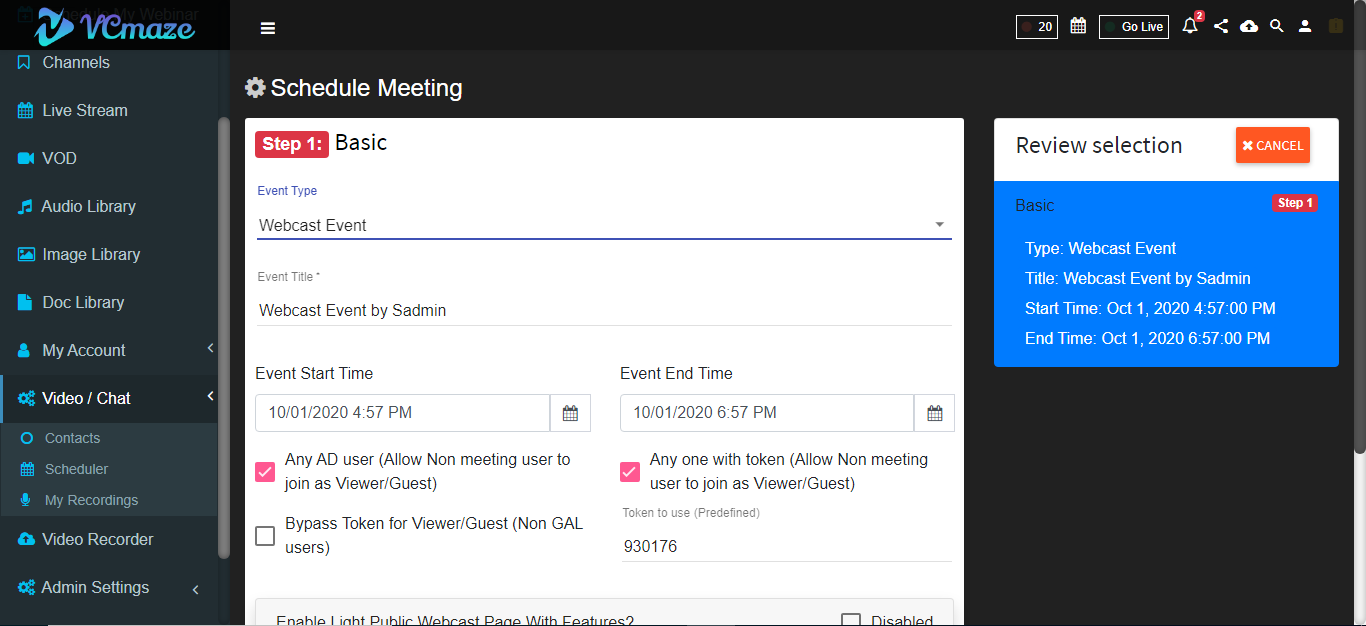
Click on Create Meeting icon and in ‘Basic Info’ tab select Event Type as ‘Webcast Event’ and fill in relevant info And Click Next
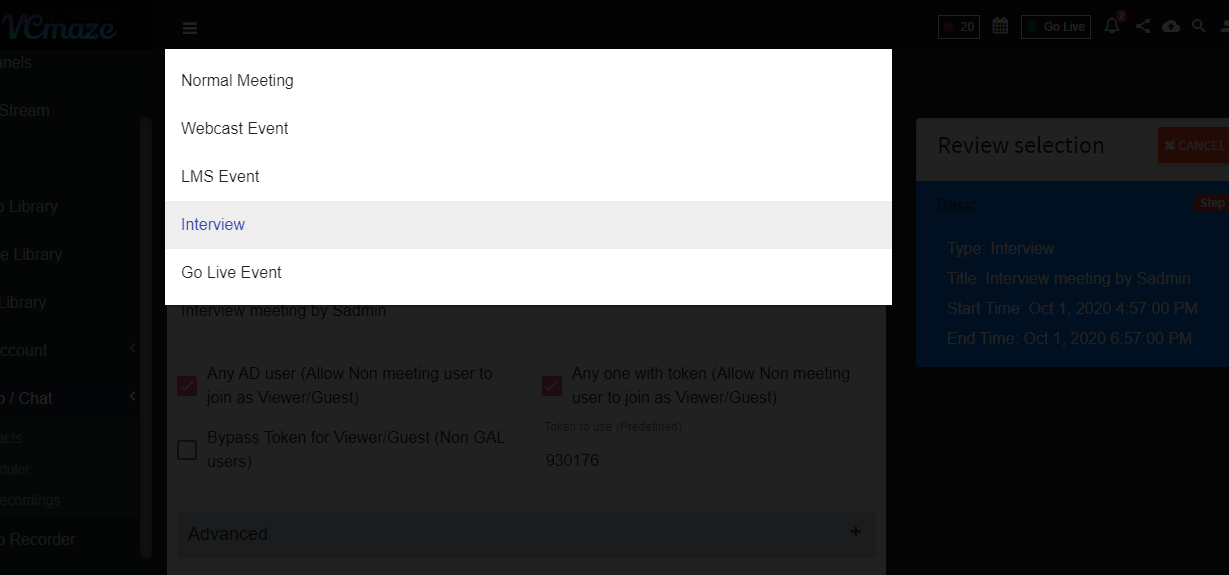
Choose Role To Add User
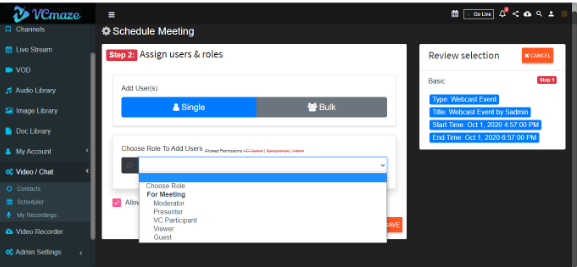
After Selected Role and Selected Users get Added then they will be display as below.
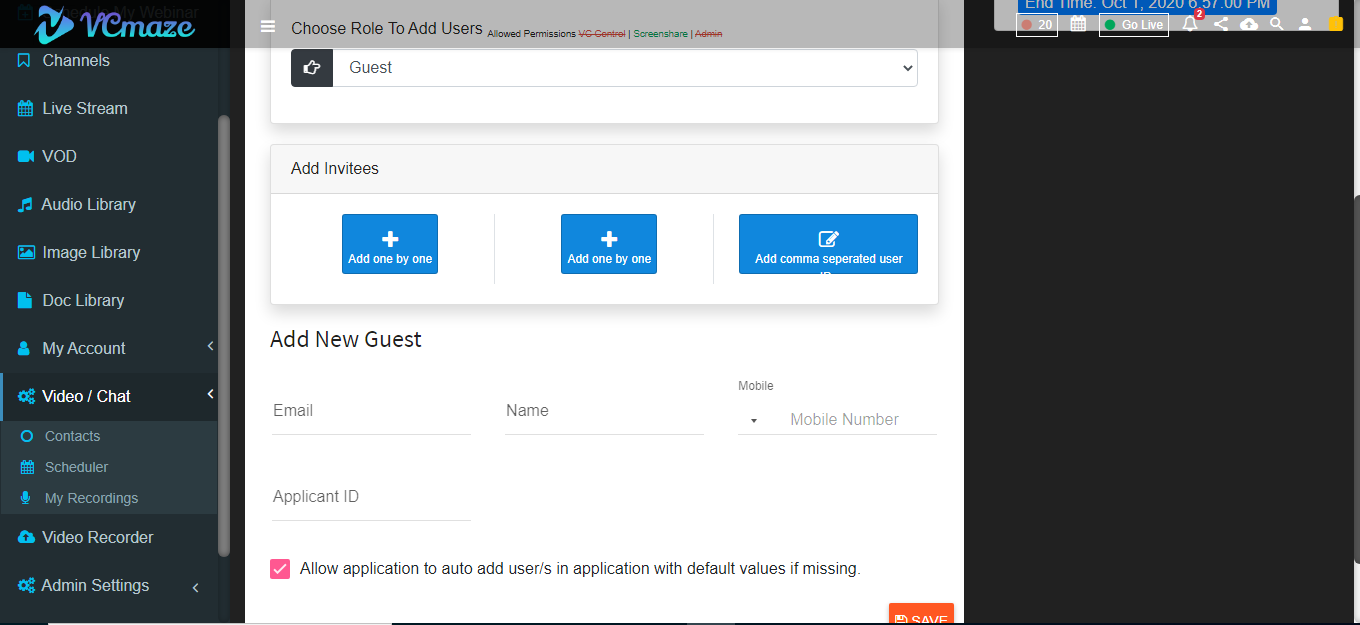
After creation of Meeting will be display in notification bar and on calendar.
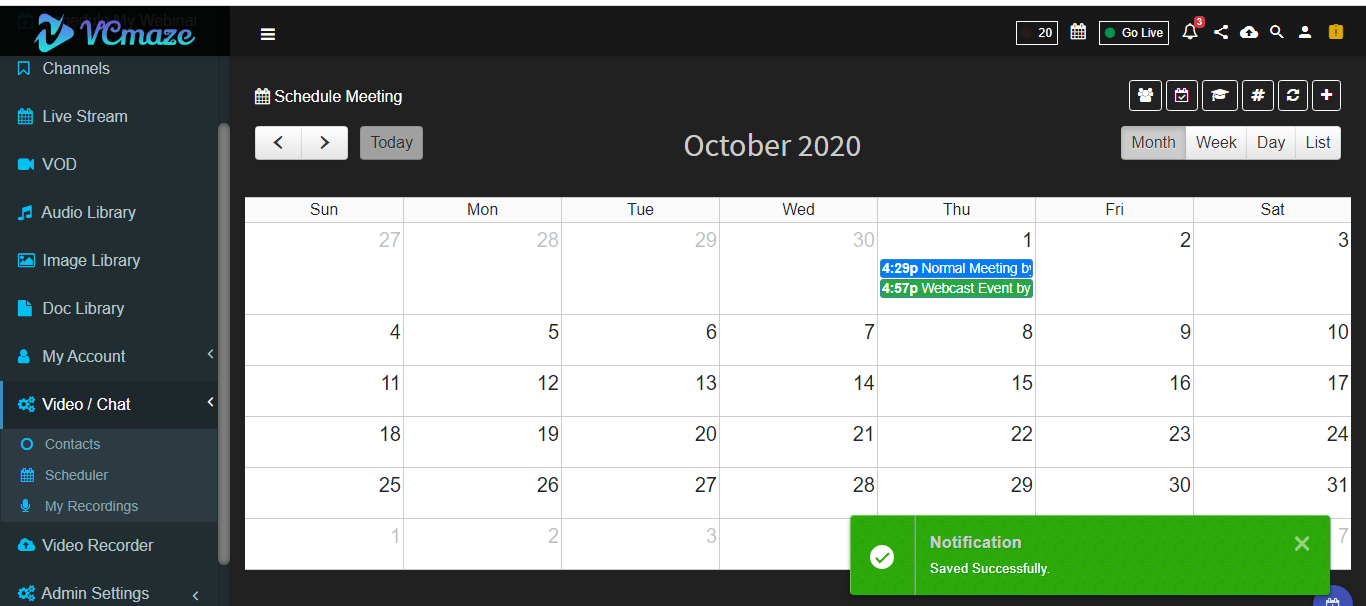
Click on that meeting notification on calendar will show you ‘Meeting Details’ and ‘User Details’ tab. where you can see meeting as well as user details. Now click on ‘Join’ button to join meeting
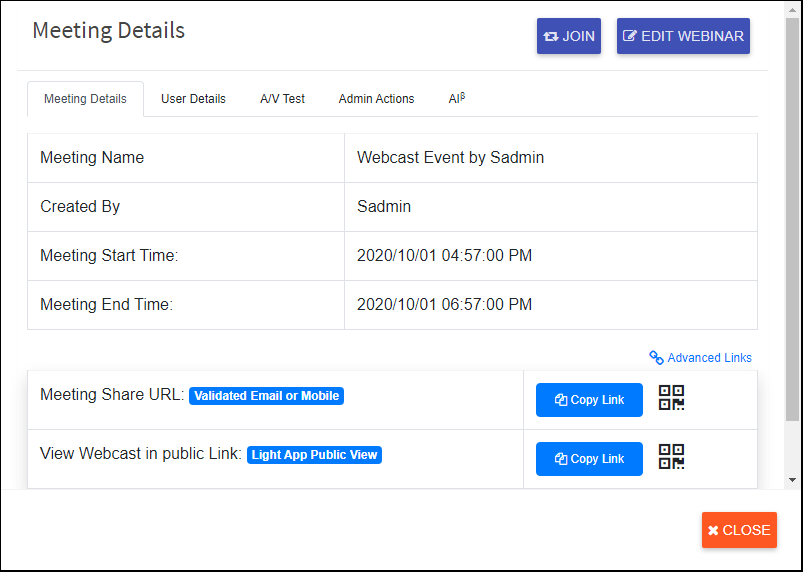
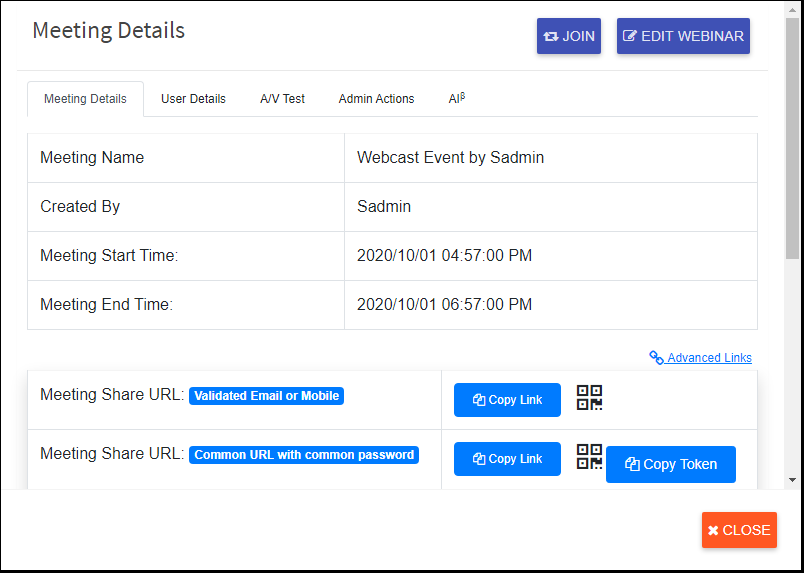
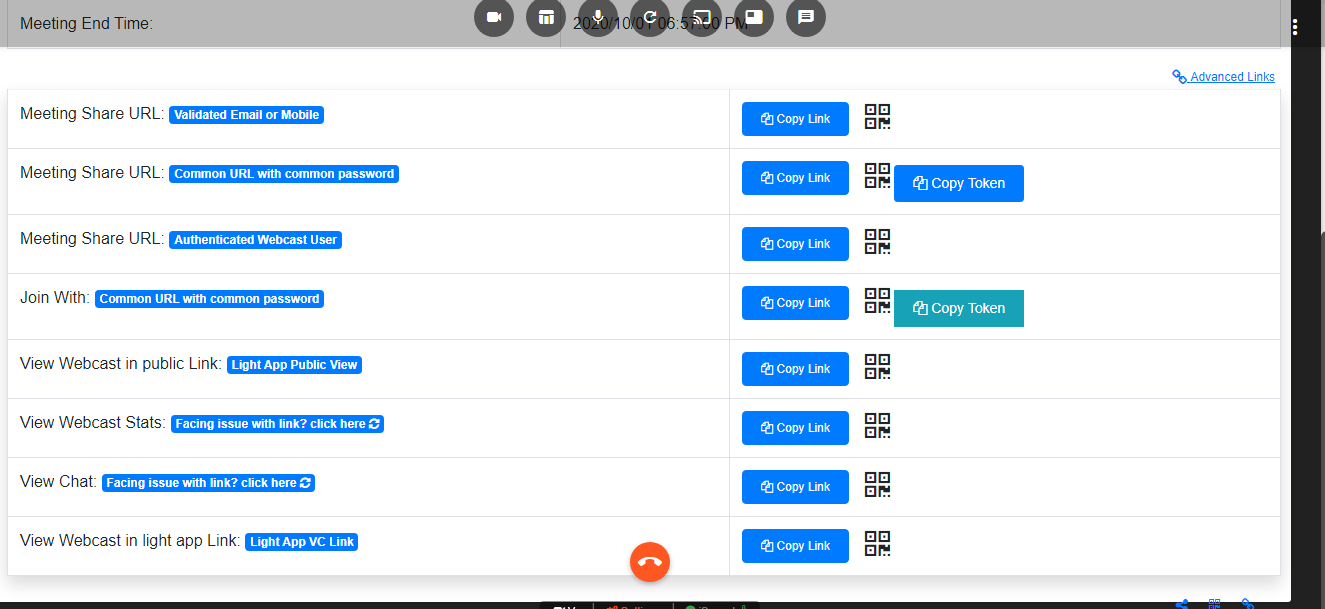
Click On Advanced Links And Can See More Options
\ User gets join now popup
p when he joins with webcam
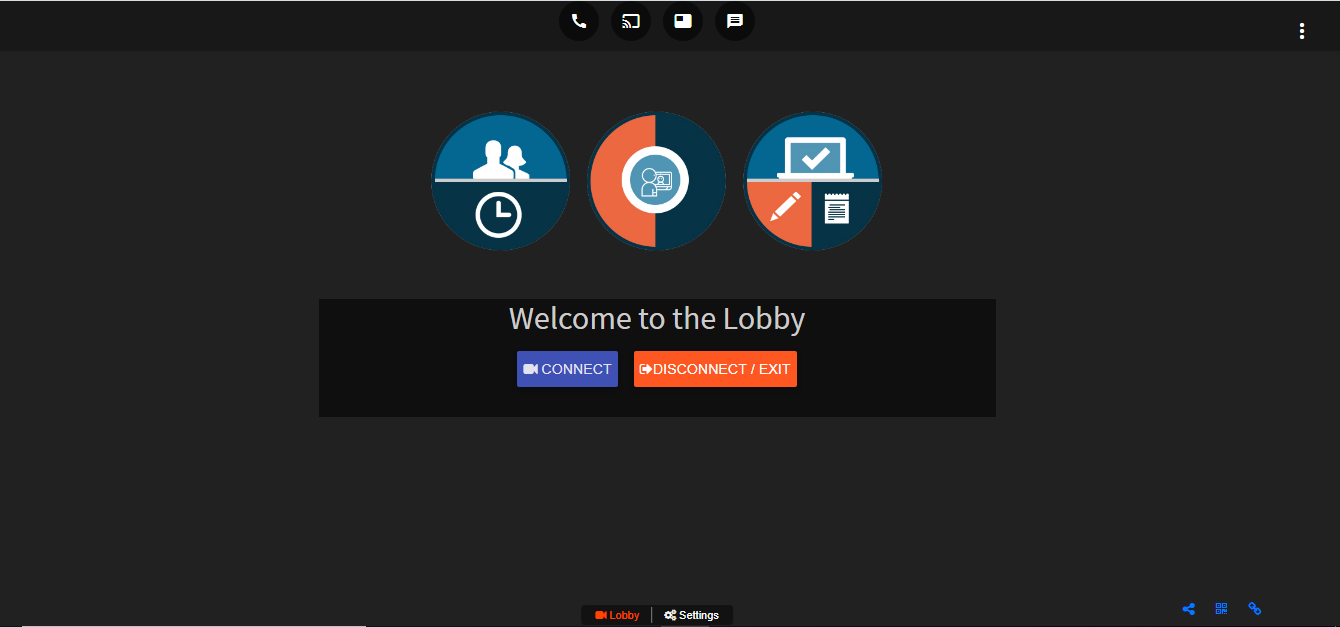
The viewer will get broadcast when streaming status is shown in the bottom links and after screen share is shared then status will change .
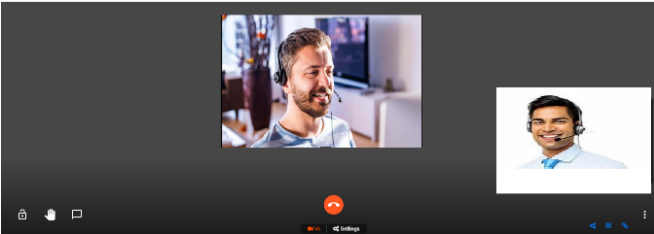
User can share the link with other users to view the webcast .
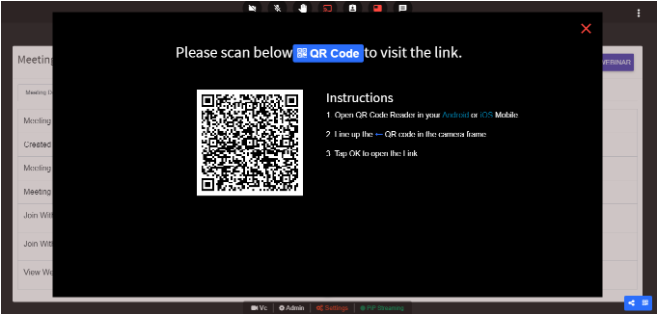
Users can also share the links from scan qr code icon. click on the icon present in bottom right corner or present in settings page
User Can See the options by clicking on three dot Elipse Button given below
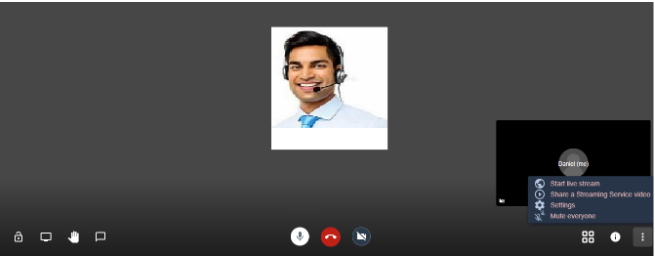
User can Chat ,share the screen and raise hand
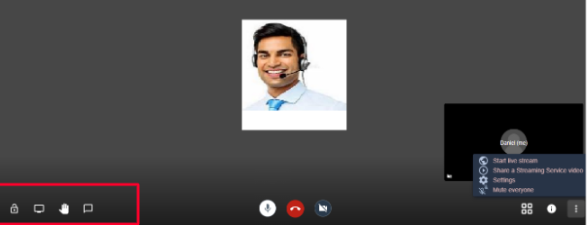
Start The Webcast by Clicking This Icon
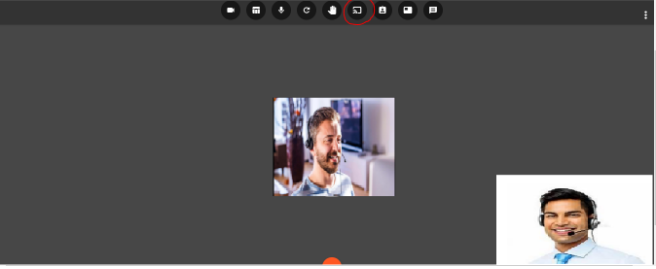
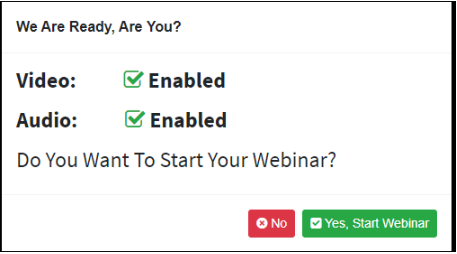
Join Webcast Meeting